Windows Build Guide.
Requirements
- 0.1. Install Clion 2020.1 or newer / Visual Studio 2019 or newer.
- 0.2. Install Vulkan SDK/Runtime 1.3.211.0 or newer.
- 0.3. Install CMake 3.16.0 or newer.
- 0.4. Install MS Build Tools for Visual Studio 16.11.29 or newer (if you are using CLion).
- 0.5. Make sure you have Python 3 installed and added to environment variables.
vcpkg
If you use Visual Studio, make sure you don't have vcpkg with zlib installed. It can cause undefined behavior. If you have it, uninstall it or remove zlib from vcpkg. Use "vcpkg list | findstr zlib" to check if you have it.
-
Open CMake GUI.
-
Choose the path to the SREngine folder (where the source code is located).
-
Choose the path where to build the binaries (ex. SREngine/build).
-
Press
Configureand choose your VS version. -
Press
Generate. -
Open Visual Studio solution.
-
In Visual Studio right-click on SREngine and press
Set as Startup Project. -
Run build.
-
Open CMD in root directory of the repository and run the following commands:
-
mkdir build
-
cd build
-
cmake -G "VISUAL_STUDIO_VERSION" ../ -DCMAKE_BUILD_TYPE=Debug -
Replace
VISUAL_STUDIO_VERSIONwith your version ex.Visual Studio 17 2022 -
Now you have your solution generated and you can open it with Visual Studio
-
In Visual Studio right-click on SREngine and press
Set as Startup Project -
Build and Run the game engine!
-
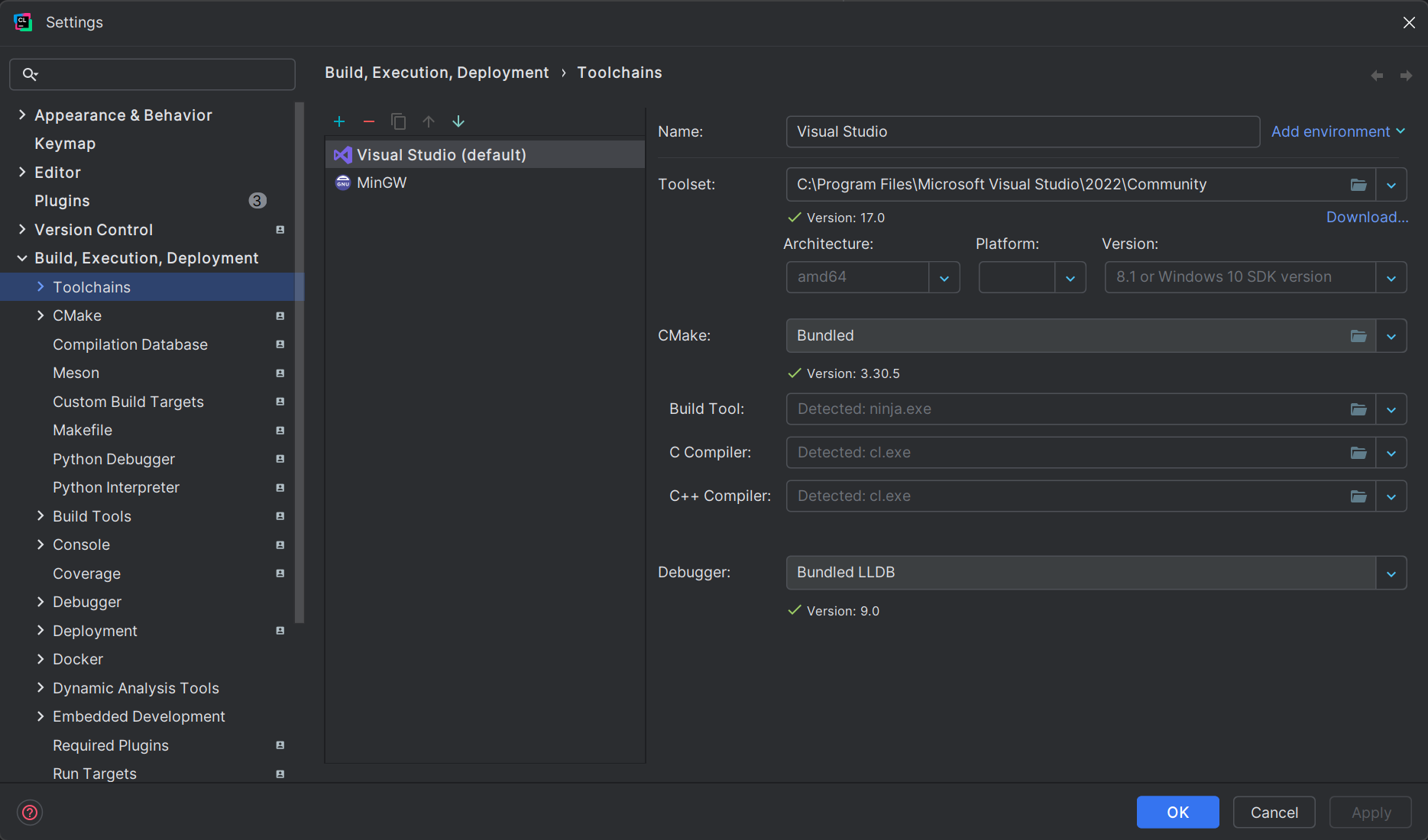
Press Ctrl + Alt + S to open Settings window.
-
Select
Build, Execution, Deploymenton the left. -
Select
Toolchains. -
Add (Alt + Insert) Visual Studio compiler.
-
Select
amd64inArchitecture:. -
Repeat "2"
-
Select
CMake. -
Pass
-j nargument asBuild options, wherenis a number of your logical processors minus 2. -
In Project window right-click
SREnginefolder and clickReload CMake Project. -
Click
Run 'SREngine'(Shift + F10).